tinyCFO
GuidesHome
  1. Home
  2. /Guides
  3. /Connect tinyCFO to Claude
getting started

Connect tinyCFO to Claude

Add tinyCFO as a connector in Claude so it can analyze your spending, track your net worth, and answer questions about your finances using your real data.

April 23, 2026|2 min read

Connect tinyCFO to Claude and start asking questions about your real financial data. Setup takes about two minutes.

Before You Start

  1. A tinyCFO account with at least one bank account connected. No account yet? Start with the Getting Started guide.
  2. A Claude account at claude.ai.

Step 1: Open Connectors

Go to claude.ai/settings/connectors and click Add custom connector.
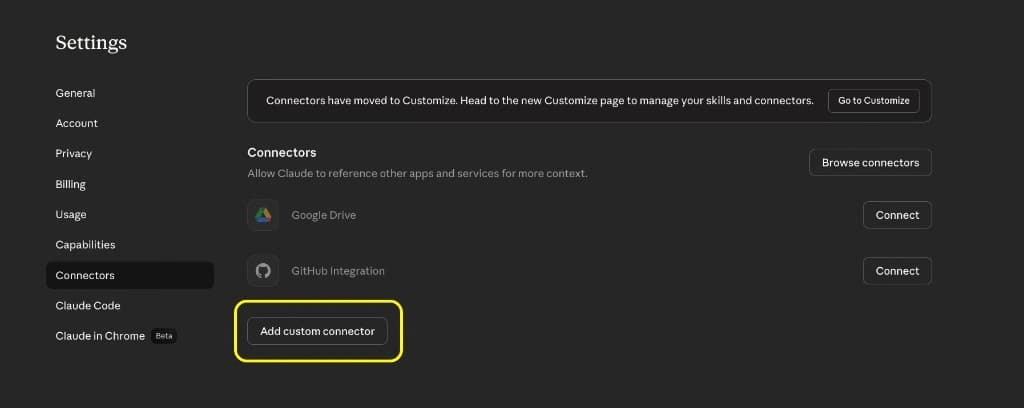
Claude Settings page showing the Connectors tab with the Add custom connector button highlighted
Click Add custom connector at the bottom of the page.

Step 2: Enter Server Details

Copy each value below and paste it into the matching field.

NametinyCFO
Remote MCP server URLhttps://www.tinycfo.ai/api/mcp

Click Add. You do not need to open Advanced settings for the default tinyCFO connector.
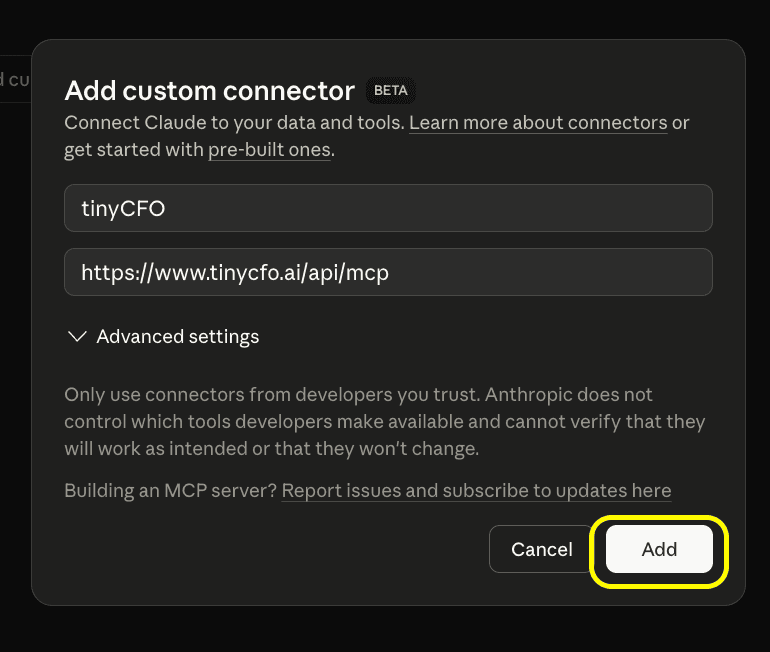
Claude Add custom connector dialog with Name tinyCFO and Remote MCP server URL filled in, Add button visible
Enter Name and Remote MCP server URL, then click Add.

Step 3: Connect and Authorize

tinyCFO appears in your Connectors list. Click Connect.
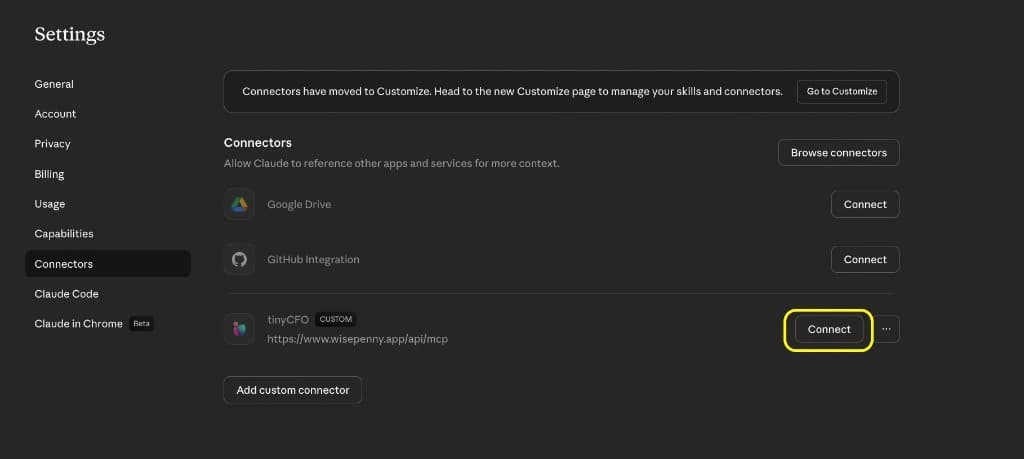
Claude Connectors list showing tinyCFO with a Custom badge and the Connect button highlighted
Click Connect to start authorization.

A tinyCFO sign-in page opens. Log in and click Authorize to grant Claude read-only access to your financial data.

Step 4: Set to Always Allow

After authorizing, the button changes to Configure. Click it and set all tools to Always allow so Claude can access your data without asking permission each time.
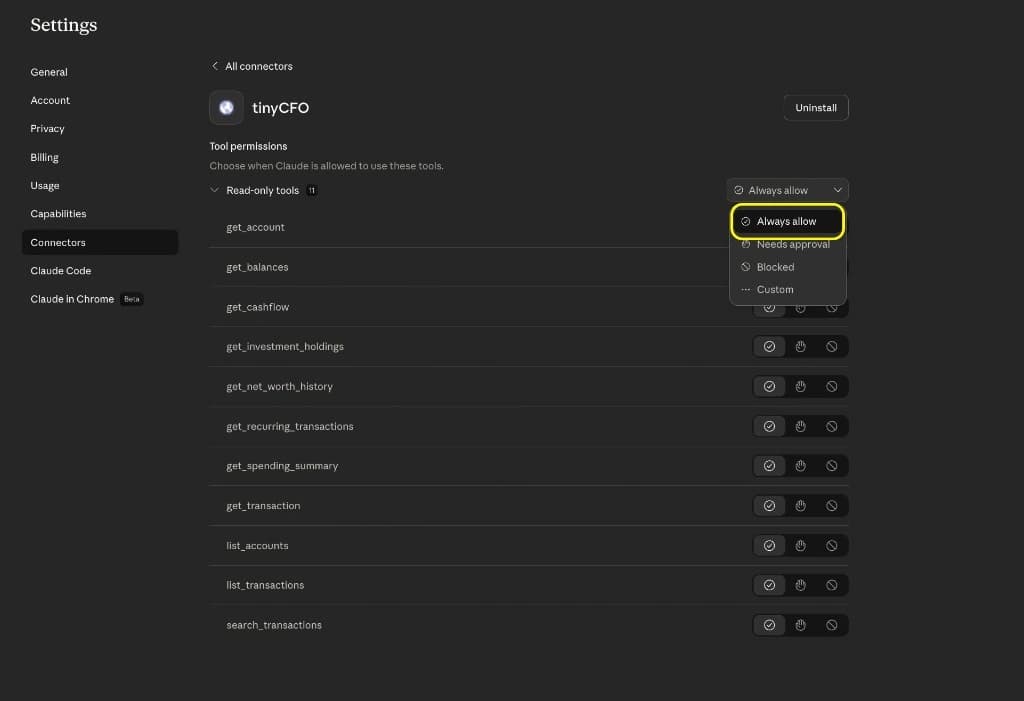
tinyCFO tool permissions in Claude showing the Always allow option selected
Set all tools to Always allow for a seamless experience.

Try It Out

Once you've completed the steps above, open a new chat in Claude and try asking something like:

  • "What did I spend on restaurants last month?"
  • "What is my current net worth?"
  • "Show me all recurring charges over $50"
  • "Am I cash flow positive this month?"

Troubleshooting

"Unauthorized" error: Make sure you are logged in to tinyCFO before clicking Connect. If you recently changed your password, sign out and back in first.

No data showing up: Verify you have at least one bank account connected in tinyCFO. New accounts can take a few minutes to sync.


Questions? Reach out at support@tinycfo.ai or book a demo.

On this page

  • Before You Start
  • Step 1: Open Connectors
  • Step 2: Enter Server Details
  • Step 3: Connect and Authorize
  • Step 4: Set to Always Allow
  • Try It Out
  • Troubleshooting

Related Guides

Getting Started

Connect tinyCFO to ChatGPT

Add tinyCFO as a custom MCP app in ChatGPT (developer mode) so you can ask about your spending, net worth, and accounts using your real data.

Apr 23, 2026|4 min read
Getting Started

Connect tinyCFO to Poke

Add tinyCFO as an MCP integration in Poke so it can analyze your spending, track your net worth, and answer questions about your finances using your real data.

Apr 23, 2026|3 min read
Getting Started

Getting Started with tinyCFO

Connect your accounts, set up AI access, and start querying your finances in plain English. Takes under five minutes.

Apr 5, 2026|3 min read
tinyCFO
Pricing·FAQ·Flowchart·Guides·Terms·Privacy·Transparency·Contact
Talk to Founders

tinyCFO is not a registered investment adviser, broker-dealer, or financial planner and does not provide financial advice, recommendations, or endorsements. We are a data aggregation and connectivity layer: we surface your financial data for informational purposes only. All investment decisions are solely your responsibility. Consult a qualified professional before making financial decisions.

New York

169 Madison Ave STE 15124
New York, NY 10016

Arizona

5227 N 7th St STE 41711
Phoenix, AZ 85014

© 2026 tinyCFO. All rights reserved.