tinyCFO
GuidesHome
  1. Home
  2. /Guides
  3. /Connect tinyCFO to ChatGPT
getting started

Connect tinyCFO to ChatGPT

Add tinyCFO as a custom MCP app in ChatGPT (developer mode) so you can ask about your spending, net worth, and accounts using your real data.

April 23, 2026|4 min read

Connect tinyCFO to ChatGPT using a custom MCP app and OAuth. ChatGPT's UI for apps and connectors is in beta and may change; if something looks different on your account, use the same values below in the closest matching fields.

Before You Start

  1. A tinyCFO account with at least one bank account connected. New here? Use the Getting Started guide.
  2. ChatGPT with access to developer mode and custom MCP apps (see Step 1).

Step 1: Enable developer mode

Open ChatGPT Settings → Connectors → Advanced and turn on developer mode so you can create custom MCP apps.

Open Connectors Advanced in ChatGPT
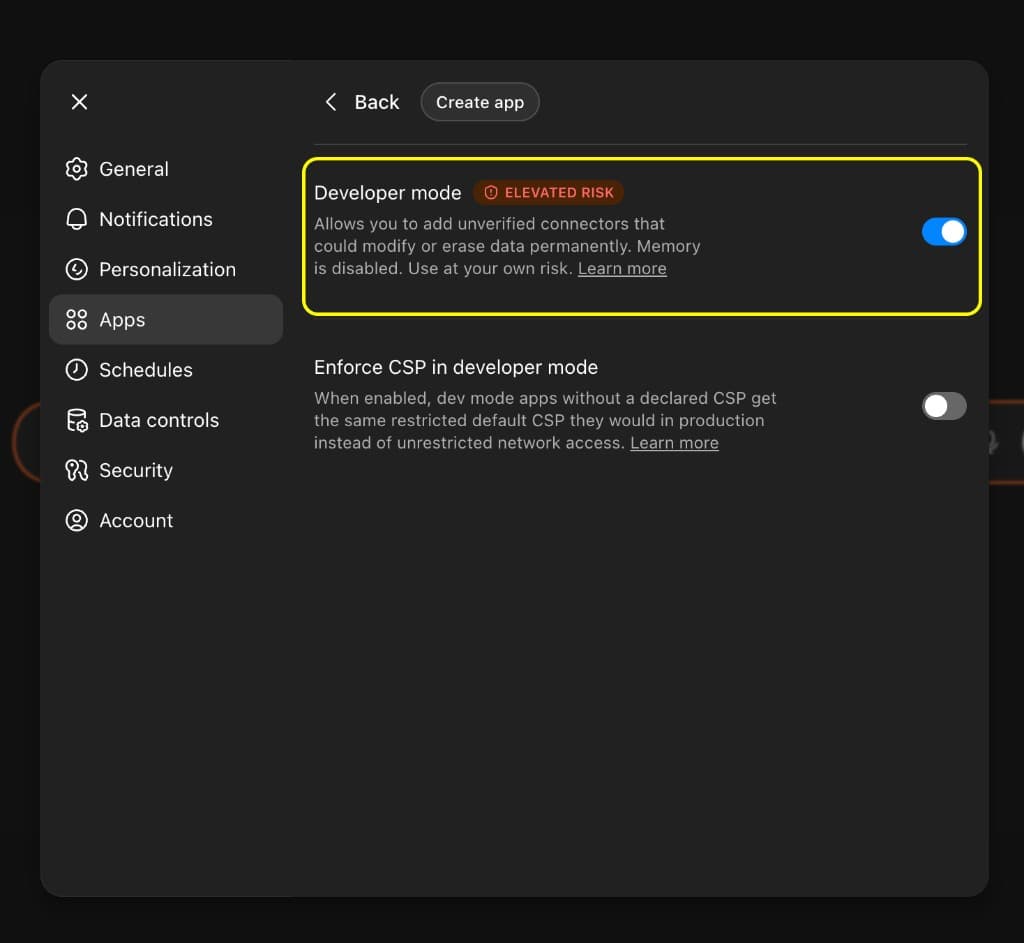
ChatGPT Settings under Apps showing Developer mode toggled on with the elevated risk notice
Settings → Apps: turn on Developer mode, then use Create app when you are ready.

Step 2: Create an app

Still in Settings → Apps (with Developer mode on), click Create app at the top to open the full new-app configuration.
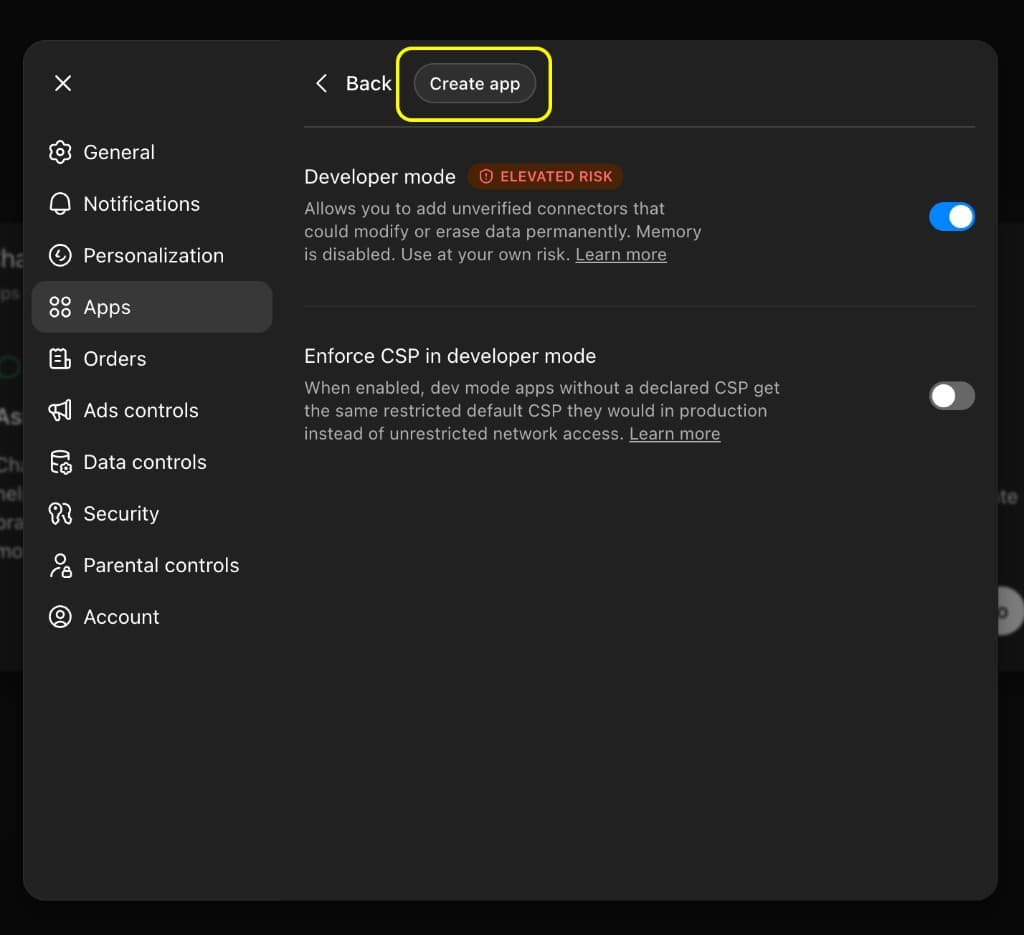
ChatGPT Apps settings with the Create app button next to Back
Click Create app to start configuring tinyCFO as a custom MCP app.

Step 3: Enter app and OAuth details

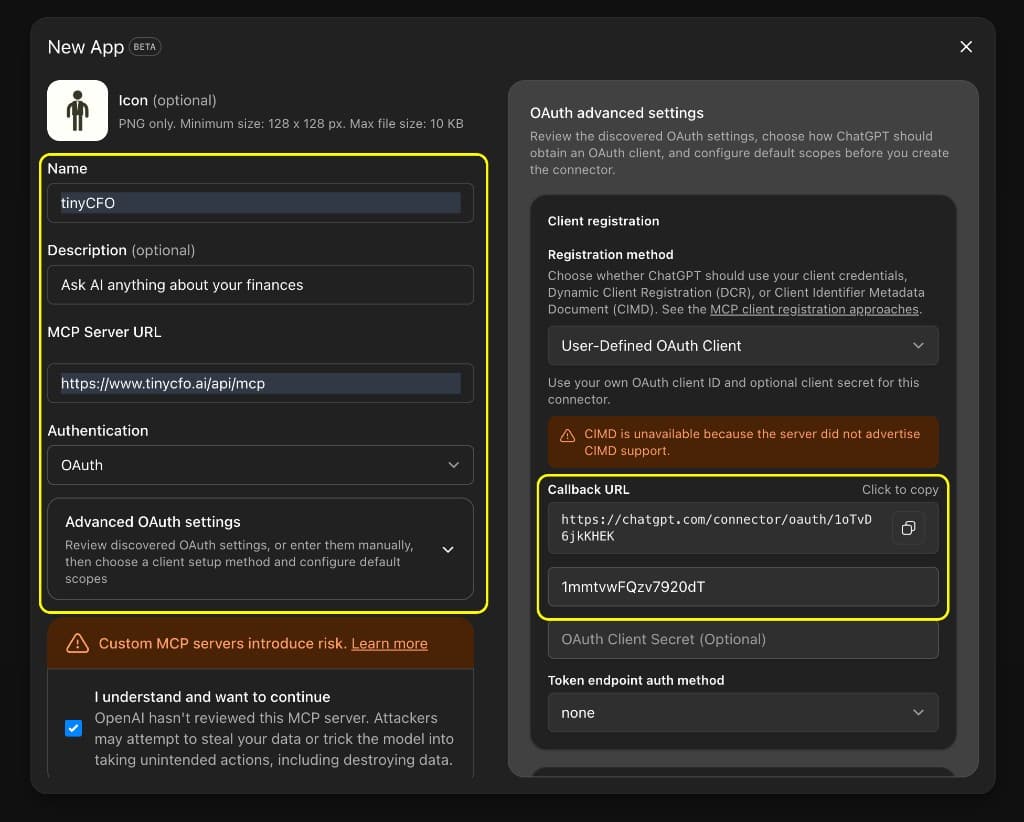
Use OAuth for authentication. In Advanced OAuth settings, ChatGPT shows a callback URL that is unique to your connector. Use it if tinyCFO or your IdP asks for a redirect URI.

Copy the values below into the matching fields on the New App form. Description is optional but helps you recognize the app later.
NametinyCFO
Description (optional)Ask AI anything about your finances
MCP Server URLhttps://www.tinycfo.ai/api/mcp
Tip

Open Advanced OAuth settings on the right. Set Registration method to User-Defined OAuth Client using ChatGPT's dropdown. That is a setting in their UI, not a value you paste. After it is set, paste tinyCFO's OAuth Client ID (below) into the client ID field.

OAuth Client ID1mmtvwFQzv7920dT
ChatGPT New App modal with tinyCFO name, MCP URL, OAuth, User-Defined OAuth Client, callback URL, client ID, and token endpoint auth set to none
Left: app name, description, MCP URL, and OAuth. Right: set Registration method to User-Defined OAuth Client (dropdown), then callback URL from ChatGPT, tinyCFO client ID, empty client secret, token endpoint auth none. Confirm the risk checkbox, then finish creating the app.
  • Authentication: OAuth
  • OAuth Client Secret: leave empty unless ChatGPT or your workspace requires it
  • Token endpoint auth method: none (unless your ChatGPT build labels this differently)

Save or create the app in ChatGPT. When it asks to connect or authorize tinyCFO, continue to the next step.

Step 4: Sign in to tinyCFO (OAuth)

After you save the app, ChatGPT starts OAuth. You should be sent to tinyCFO's sign-in page in the browser (same window or a pop-up, depending on your setup). Sign in with the same tinyCFO account that has your bank data. That links ChatGPT to tinyCFO so the MCP tools can run on your behalf.

If you are not already logged in at tinycfo.ai, use Google or email on this screen, then complete any Authorize prompt ChatGPT shows.
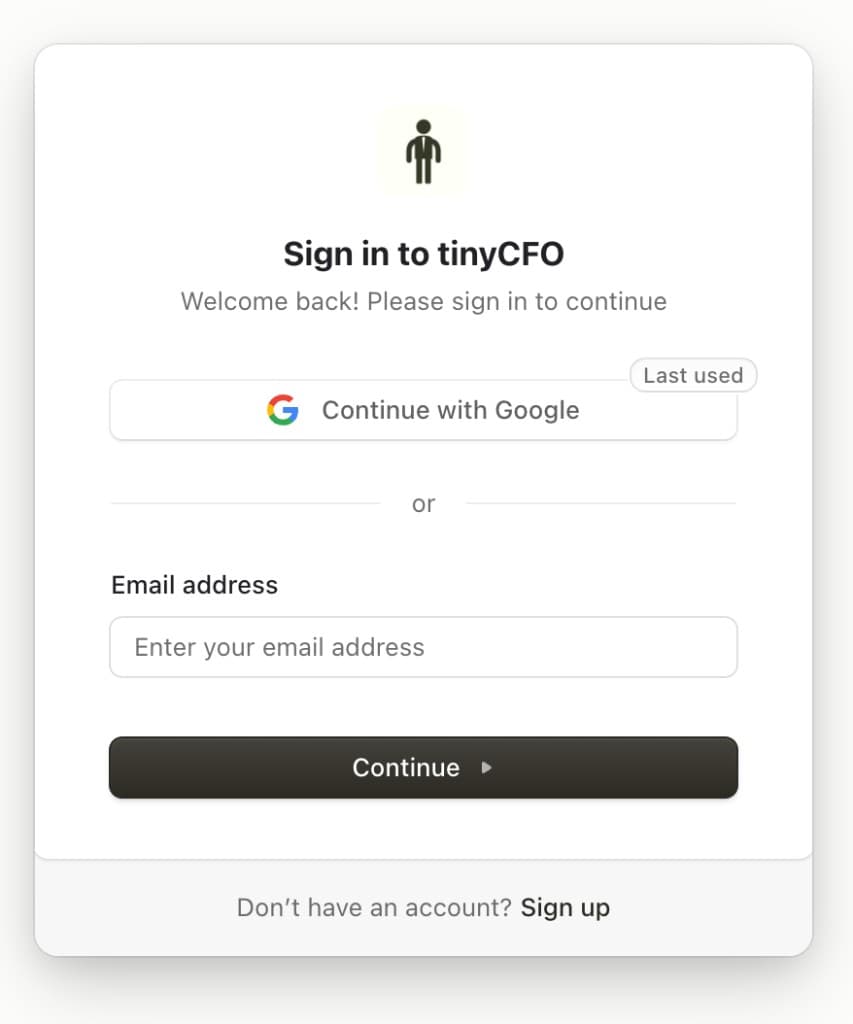
tinyCFO sign-in modal with Continue with Google, email option, and Continue button
Sign in to the tinyCFO account you want ChatGPT to use. Then finish authorization back in ChatGPT if prompted.

Step 5: Ask tinyCFO a question

Open a chat where your tinyCFO app is available (for example ChatGPT's Developer mode test chat for that app) and try:

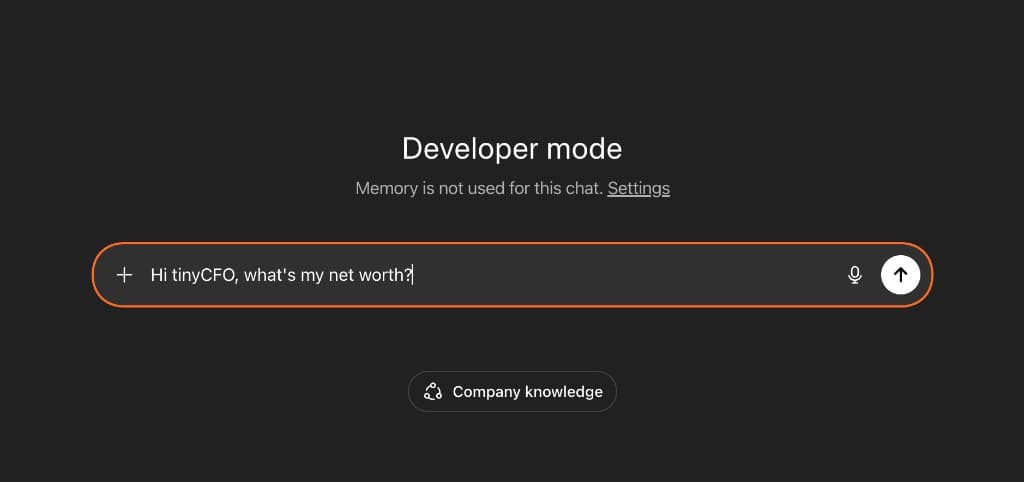
  • Hi tinyCFO, what's my net worth?
ChatGPT Developer mode chat composer showing the message Hi tinyCFO, what's my net worth?
Type a question in the composer and send it. tinyCFO tools should run against your connected accounts.

Troubleshooting

"Unauthorized" or sign-in errors: Open tinyCFO in the same browser, sign in, then retry authorization from ChatGPT.

No data in answers: Confirm at least one account is linked in tinyCFO and sync has finished.

UI differs from this guide: Copy only the MCP Server URL and OAuth Client ID above into the fields your build exposes; names of sections may change while the product is in beta.

On this page

  • Before You Start
  • Step 1: Enable developer mode
  • Step 2: Create an app
  • Step 3: Enter app and OAuth details
  • Step 4: Sign in to tinyCFO (OAuth)
  • Step 5: Ask tinyCFO a question
  • Troubleshooting

Related Guides

Getting Started

Connect tinyCFO to Claude

Add tinyCFO as a connector in Claude so it can analyze your spending, track your net worth, and answer questions about your finances using your real data.

Apr 23, 2026|2 min read
Getting Started

Connect tinyCFO to Poke

Add tinyCFO as an MCP integration in Poke so it can analyze your spending, track your net worth, and answer questions about your finances using your real data.

Apr 23, 2026|3 min read
Getting Started

Getting Started with tinyCFO

Connect your accounts, set up AI access, and start querying your finances in plain English. Takes under five minutes.

Apr 5, 2026|3 min read
tinyCFO
Pricing·FAQ·Flowchart·Guides·Terms·Privacy·Transparency·Contact
Talk to Founders

tinyCFO is not a registered investment adviser, broker-dealer, or financial planner and does not provide financial advice, recommendations, or endorsements. We are a data aggregation and connectivity layer: we surface your financial data for informational purposes only. All investment decisions are solely your responsibility. Consult a qualified professional before making financial decisions.

New York

169 Madison Ave STE 15124
New York, NY 10016

Arizona

5227 N 7th St STE 41711
Phoenix, AZ 85014

© 2026 tinyCFO. All rights reserved.